
Icons
General
During your bookings in Cockpit, you will stumble upon numerous icons.
In this article we have gathered all the information you will need to get familiar with these icons.
As you might've guessed, they all carry useful information and can help you in your every day journey through Cockpit.
But don't worry, you don't have to remember them all!
To get a swift reminder of the functions, just mouse-over the icons and fare types.
Free Carry‑on Baggage Icons
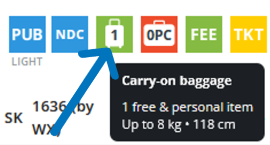
With the carry‑on baggage icon, you can see at one glance what baggage you can take on board - including size and weight - by mouse-hovering over the symbol.
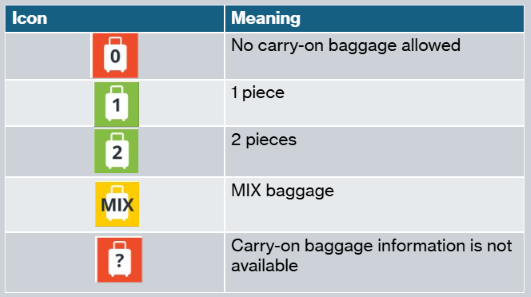
These are the different carry-on baggage icons you may encounter:
Free Checked Baggage Allowance Icons
Different fares have different baggage allowances.
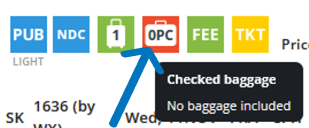
For more information, hover your mouse pointer over the icons.
Green: Free checked baggage for all flight legs included
Yellow: At least one leg without free baggage allowance
Red: No free baggage allowance or no information available
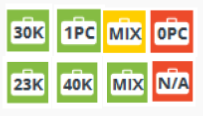
Note: „N/A“ only appears in the results list. The correct baggage allowance is displayed during the booking process.
Tip: For “MIX” please collapse the result to get to know on which routing which free baggage allowance applies.
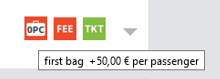
In some cases, if you hover over the "0PC" icon with the mouse, you get the information of how much the first piece of luggage per person would cost. Please note that this is not supported by all airlines / GDS.
Example:
Info Icon
From time to time you will see the information icon below.
Click on it to get advice on your booking process.

Fare Icons
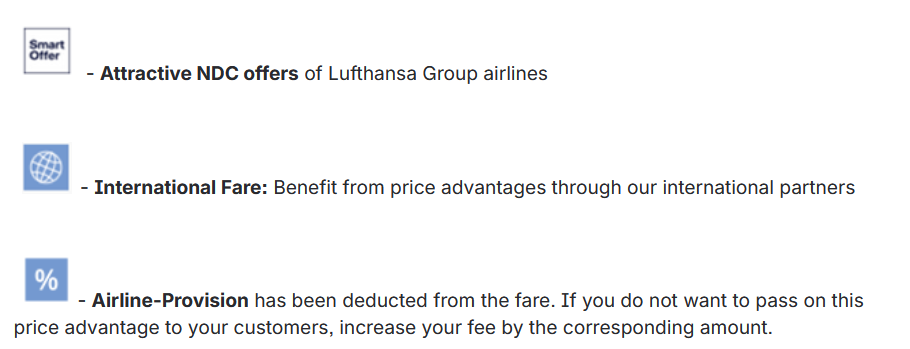
You will find numerous icons within the flight search process. Please use the mouse-over function to obtain the relevant information, for example about each fare type.
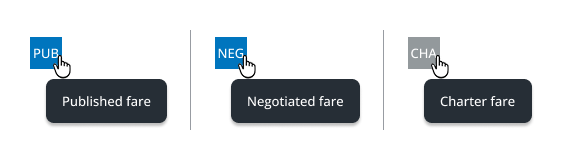
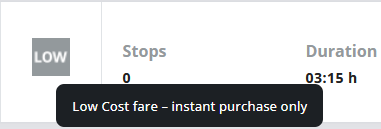
You can also see whether it is, for example, an NDC offer from the LH Group or an international fare.
Airline Icons
During your booking process you might want to know more about the airlines that offer the flights.
In other words, get a brush up on who's who.
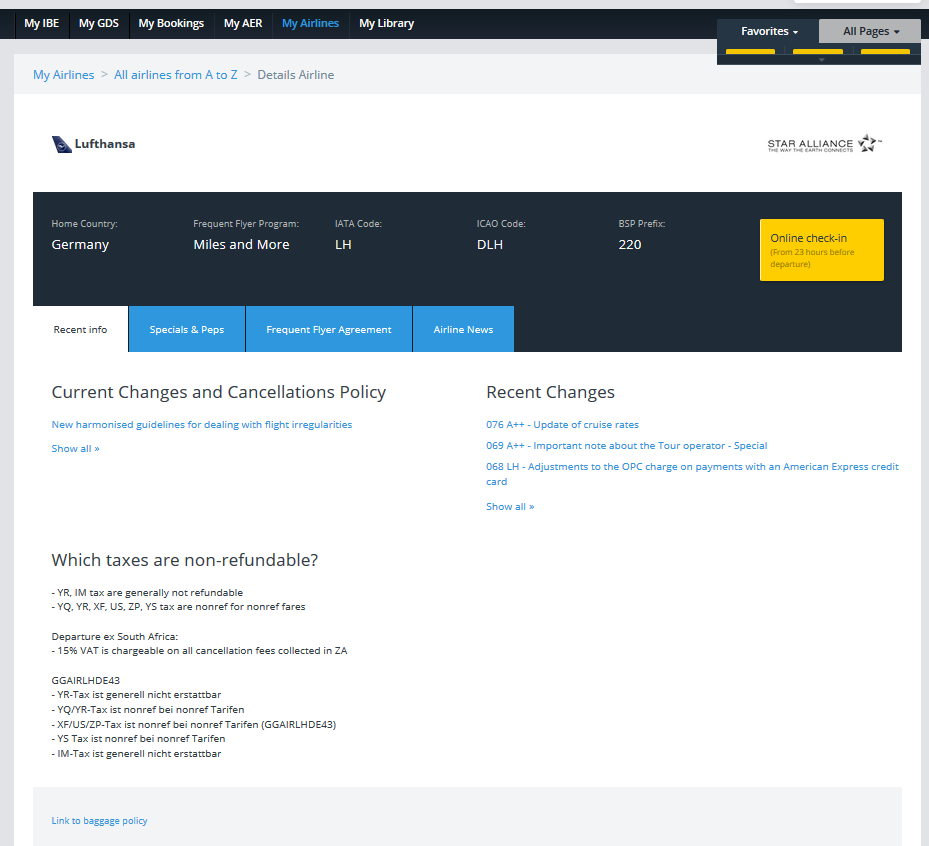
Great news, that´s no problem. At any time, you can click on the airline icon to get more information.

Clicking on any airline icon (e.g. in the flight results page) will open a new window with comprehensive information on this airline.

Ticket Time Limit Icons
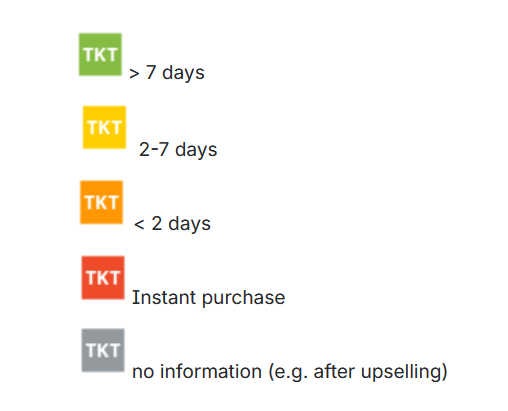
Time is a crucial factor when processing booking transactions and different time limits apply to different ticket types.
The TKTL according to GDS, converted to your time zone, is displayed here when using the mouse-over function.
Important: The date displayed is determined based on fare rules. However, airlines may require tickets to be issued earlier. Airlines can also use Amadeus Time Limit rules to define the latest ticketing date.
In addition to the last ticketing date from the fare rules, other criteria can be taken into account in these rules (e.g., flight information, passenger information, point of sale). If this is the case, an OPW (option element warning) with the latest ticket creation date is set in the PNR.
In some cases, the ticket time limit may become more restrictive than originally specified in the TST.
Once the reservation is done you will see the correct ticket time limit here:
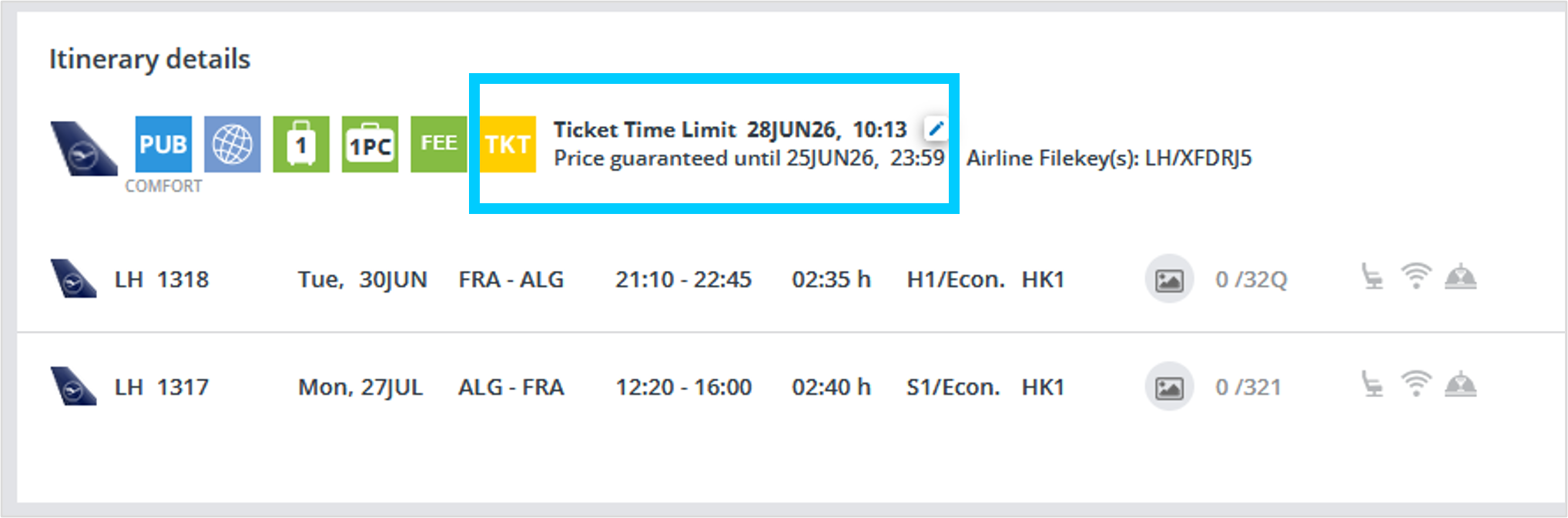
Note: You will always be informed if the TKTL changes.
Agency Markup Icons
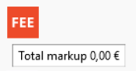
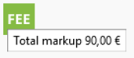
Don´t forget to include your agency markup! The FEE icon informs you whether your agency markup is already included in the price you see or not.
Red: Price does not include your agency markup or service fee (net fare without mark up)
Green: Price includes your agency markup or service fee
Tip: Adjust your agency markup by updating the amount in the markup field above the “Filters”-section. You may increase or reduce the markup.
The entry will be applied per person. The agency markup can also be adjusted on the payment page.
Example:
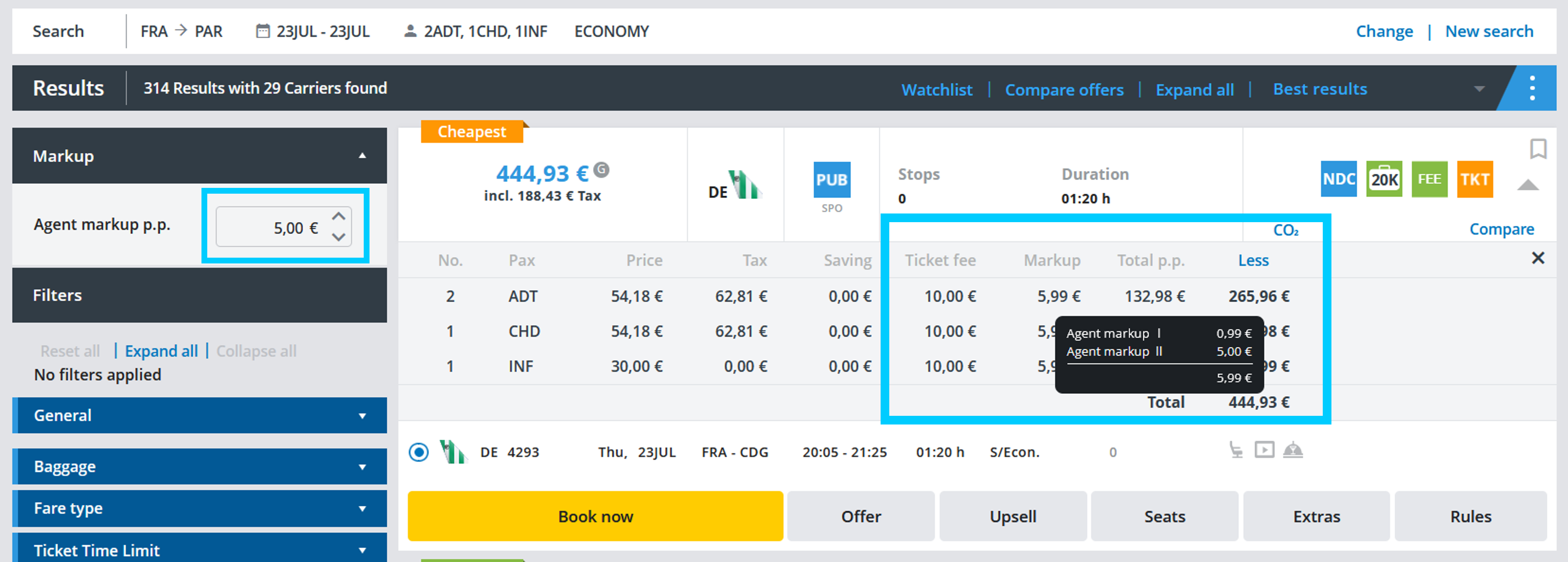
In this example, an agency fee of €0.99 was set by default (Calculation). This was increased here by €5.00 per person.