
How to search
General information
Our Cockpit flight search has a lot of great options - but with being new to the site we thought you might want a proper introduction. A digital hand-shake, if you will.
Starting off with the search function, you might want to fill in your departure and arrival destination.
Next, the date and perhaps a time slot for your travels.
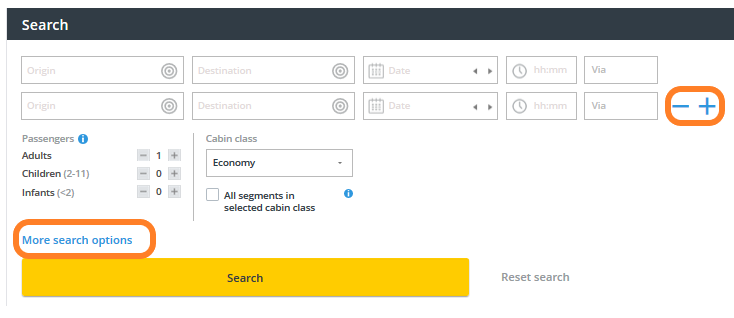
To the right side of these options you'll see a big blue minus and plus sign.
Click on these to get the following options:
- Use “+” and “-” to add or delete flight legs for one-way journeys or multi-stop circle trips.
- Use the “via” option for simple return flights rather than adding all legs.
- Open-Jaw routings (e.g., FRA - LAX / LAX - MUC or FRA - LAX / SFO - FRA) can be searched by replacing the origin or destination city of the return flight.
Furthermore:
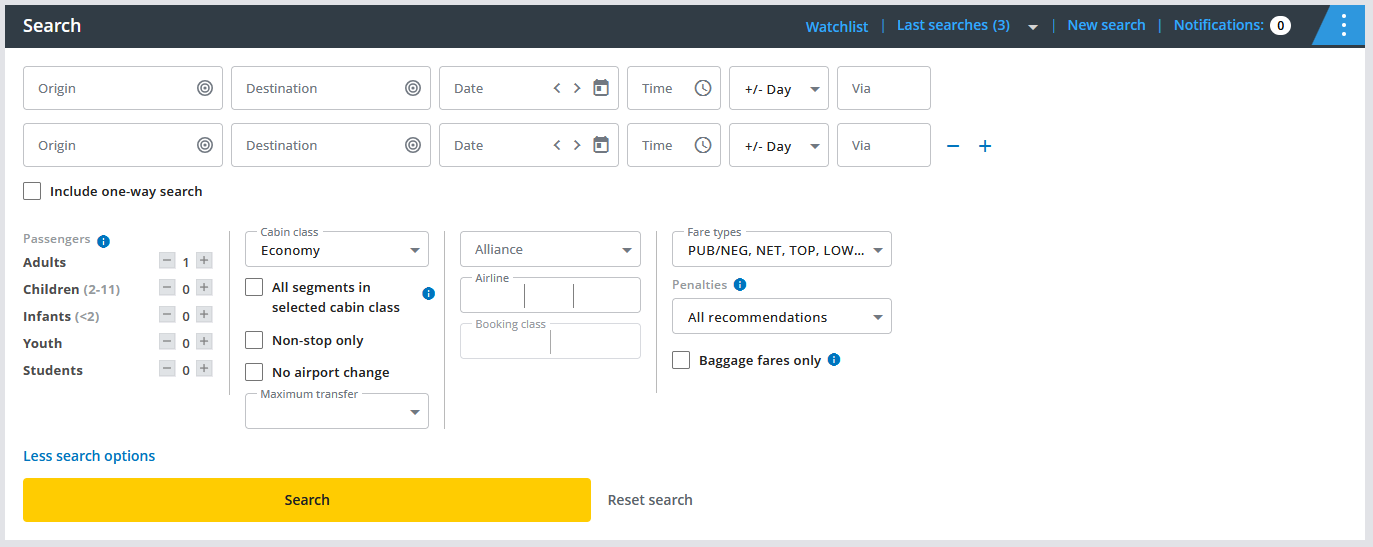
- “More search options” are available, e.g. selecting passenger types, non-stop flights, calendar search or up to 3 airlines, specific fare types and more.
Radius Search
It may be useful to check departures from several airports in the surrounding area. To do this, please click on the symbol next to the departure location.
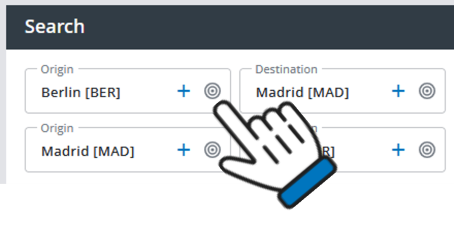
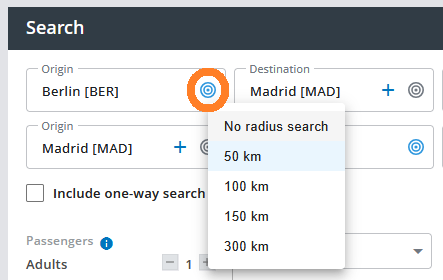
You can search offers from alternative airports within a radius of up to 300 km - after selection the symbol turns blue:
Search multiple airports simultaneously
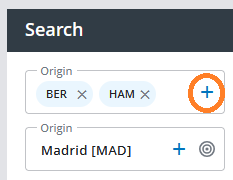
By clicking on the ‘+’ symbol in the departure airport and destination airport fields, you can add up to three airport or city codes, even from different countries (e.g. ZRH).
Please do not use this option to search for open-jaw flights.
Fares including Rail & Fly and ‘Zug zum Flug’
By land, sea and air – you'll find lots of different travel options in Cockpit!
Enter ‘QYG’ in the ‘Departure airport’ field to display travel routes that also include rail connections.
Alternatively, you may book rail tickets as a feeder for long haul flights later during the booking process (Zug zum Flug „ZZF“)
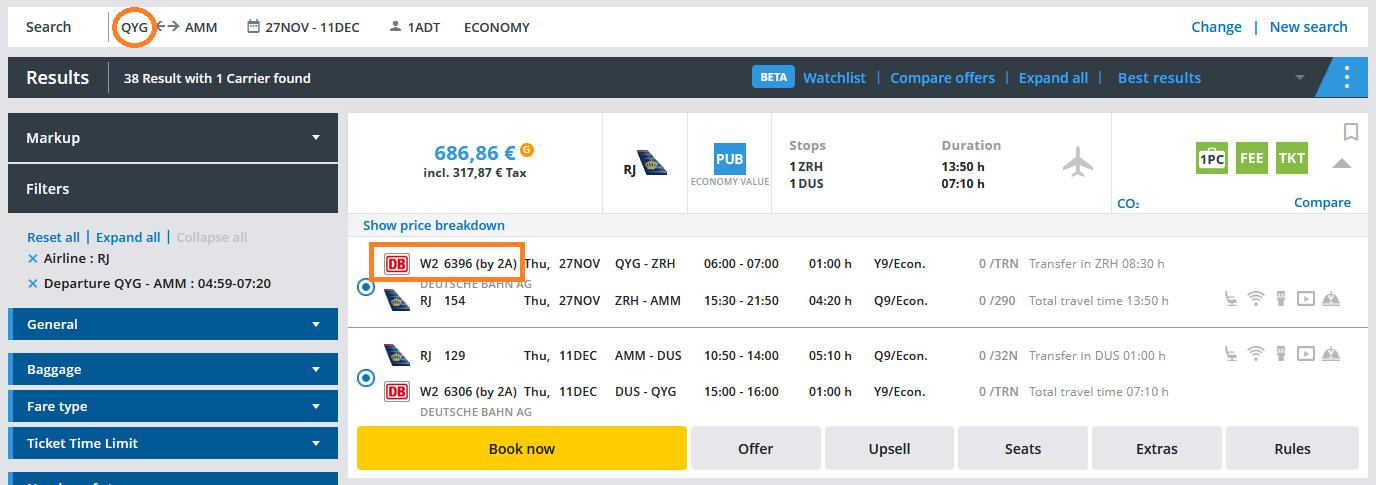
All train schedules are fictitious. Please refer to www.bahn.com/en for train schedules.
Search for specific Departure or Arrival time
You have the possibility to choose between departure and arrival time. Flights in the difference range of +/- 1h at the selected time are displayed.
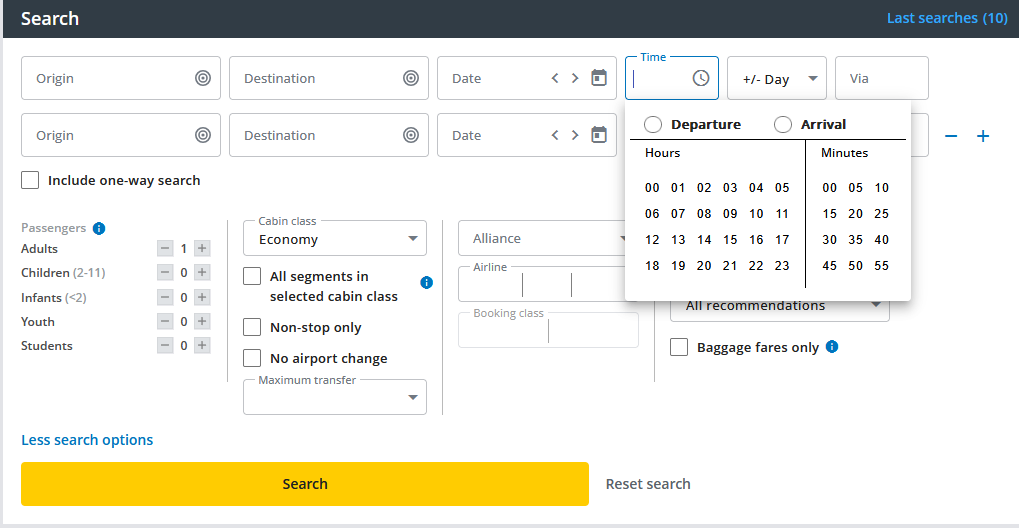
If you click on the clock icon, a selection window opens where you can choose between departure and arrival times and store the time accordingly.
If you enter the time directly into the time box, it will automatically be recognised as the departure time.

Please note that this search function cannot be used in combination with the calendar function.
Flexible calendar search and Cabin class combination
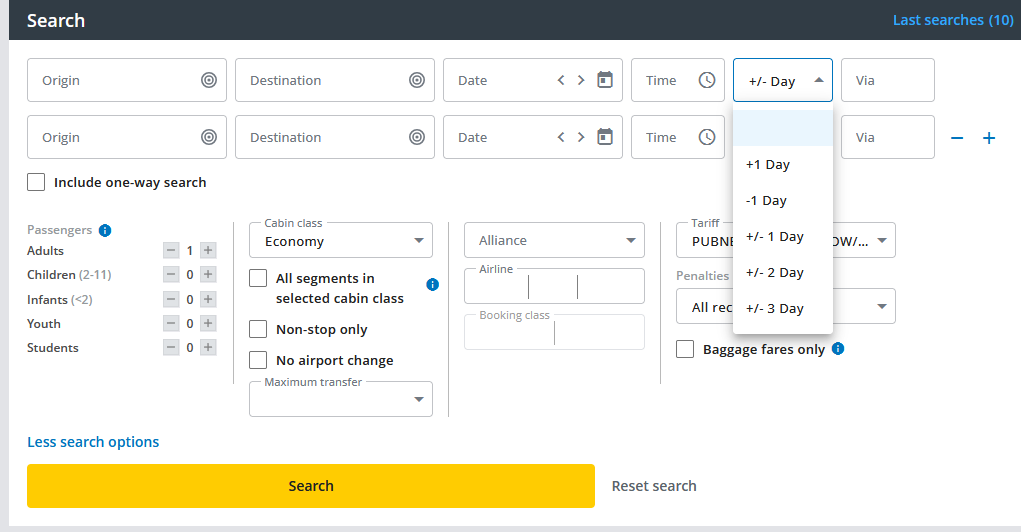
You can search for multiple dates at the same time if you set flexible dates for your outbound and return flights.
Please note, however, that you cannot combine the radius search and multiple airport queries with flexible dates.
Would you like to combine different cabin classes? No problem! Simply select ‘Mix’ as your cabin class.
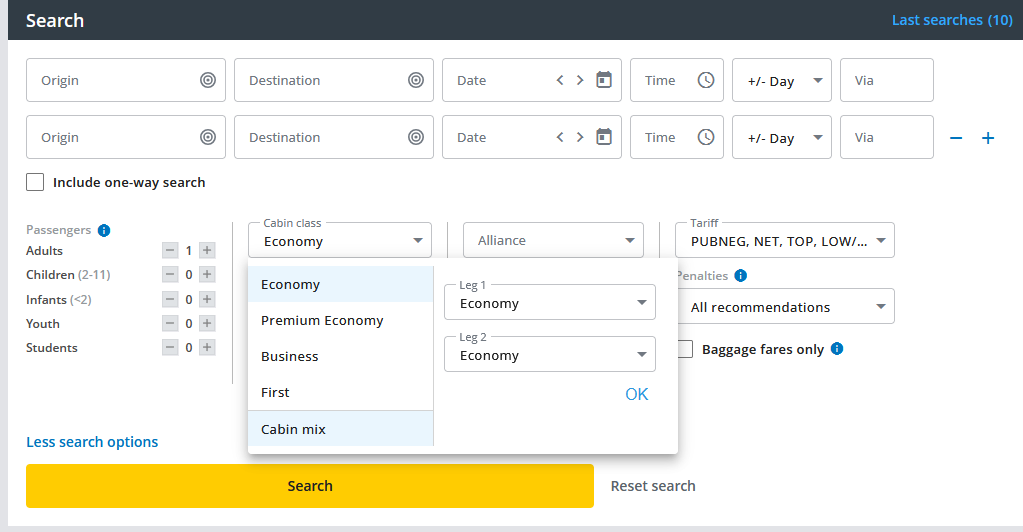
You can select the cabin class for the entire journey or for each flight segment in advance.
If you do not choose a specific cabin class and send the search query with the default setting ‘Economy’, you will be shown both Economy and Business Class fares if the price for the Business Class fare is lower than the Economy fare. The same applies when searching for a Business Class fare: the next higher classes will always be shown if the price is lower.
Result list for flexible calendar search
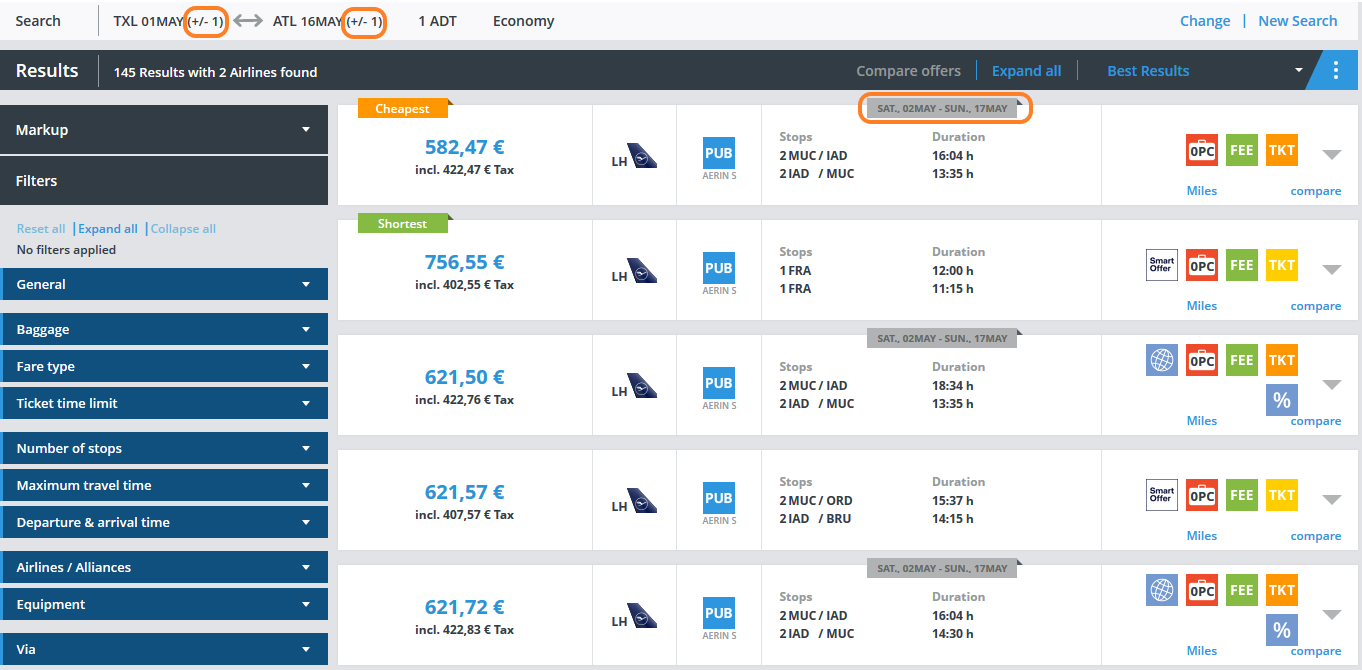
With the flexible calendar search +/- 1 day, the results are displayed directly on the results page. If the date differs from the desired date, this is indicated as follows:
With the flexible calendar search +/- 2 or 3 days, you will receive the results displayed in a calendar matrix, where you can select the desired result and be redirected to the results page.
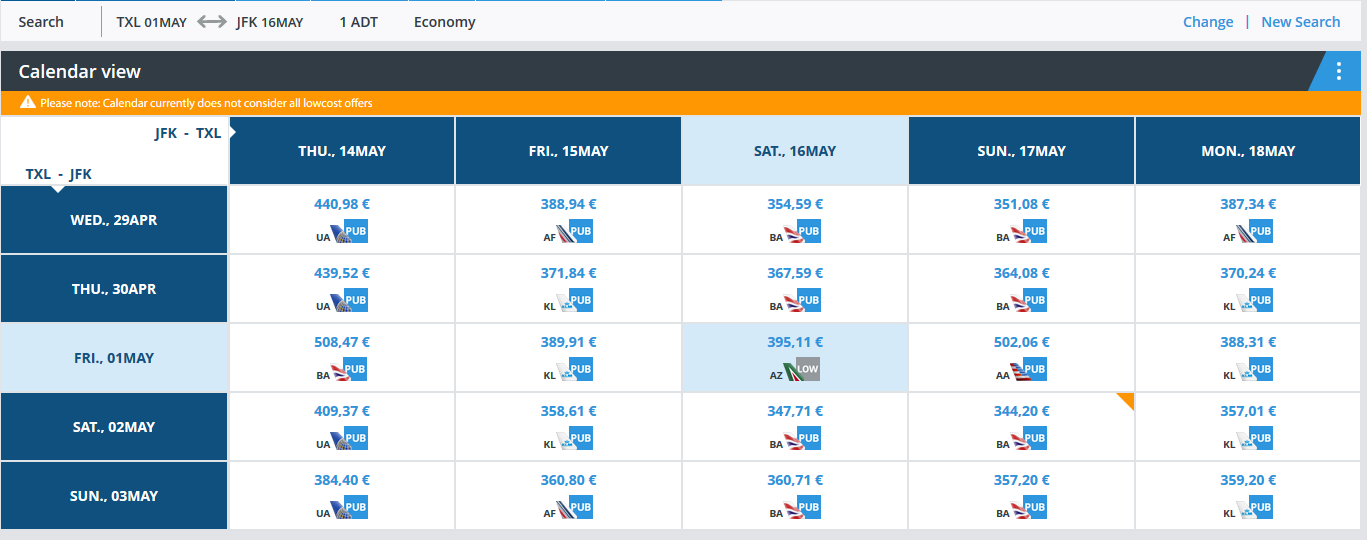
The cheapest option is shown with an orange triangle, your original flight dates are displayed in light blue.
The search results overview does not include low-cost offers. Clicking on a specific date combination will also display the low-cost options.
Search for specific tariff types
Here you have the possibility to exclude tariffs such as TOP, LOW or VFR from the search. However, the PUB/NEG and NET tariffs are always delivered and cannot be changed.
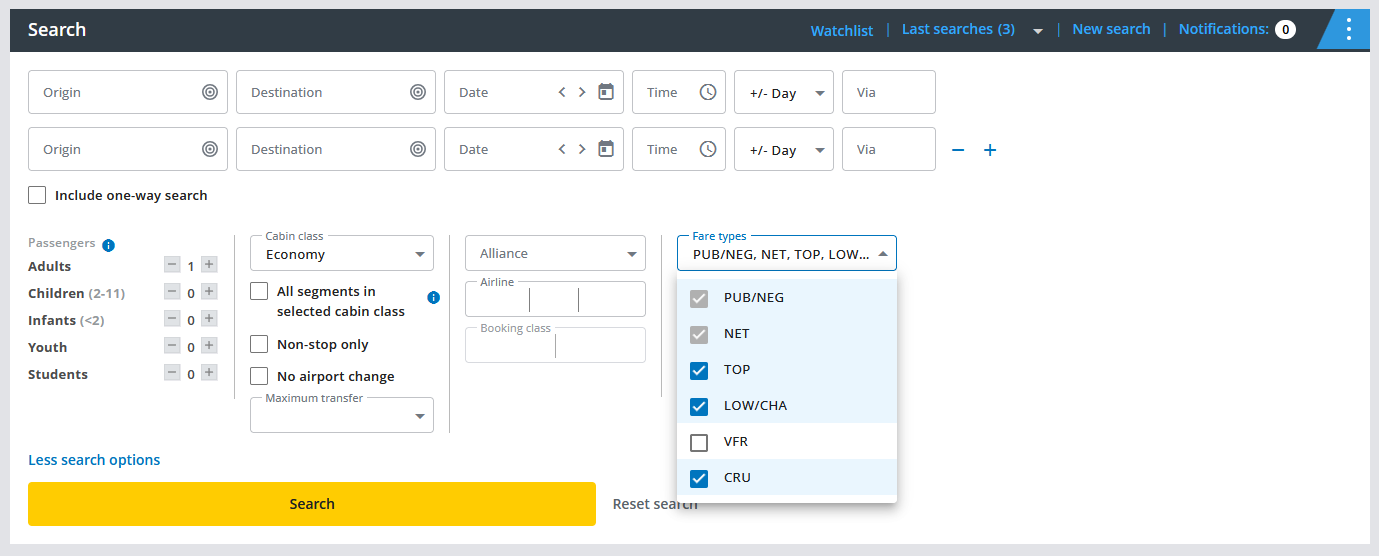
Note: If you click on "Reset search" and thus start a new search, your previous entry under Tariff is reset to the default setting.
Search for specific fare conditions
With this search setting you have the possibility to display only fares without cancellation fee or only rebookable fares.
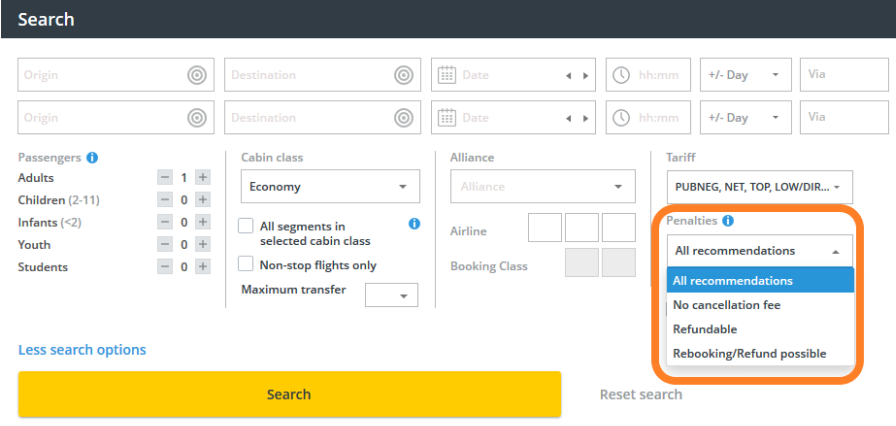
Note: The "All recommendations" search is set by default, if you switch to one of the other three options, only results in the GDS based on the airline's filters will be returned.
Search exclusively for fares with free baggage allowance
If you tick the box next to ‘Baggage fares only’, only fares that include free baggage allowance will be displayed.
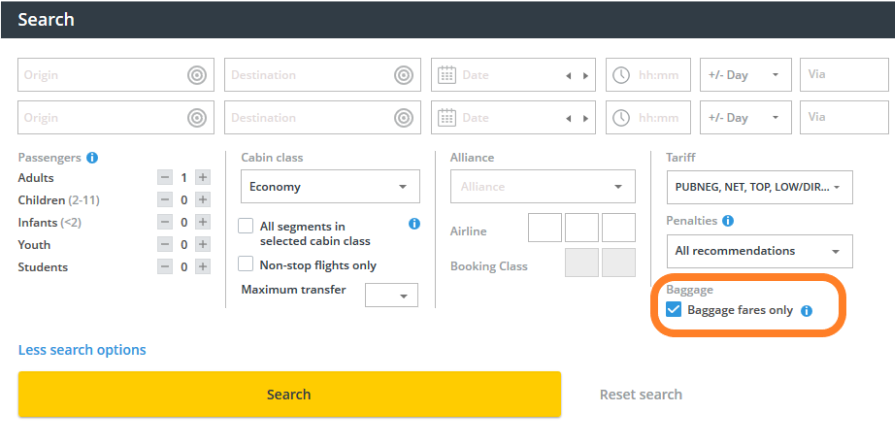
Offers where baggage may be booked as an additional service are not included.
One-Way Combinations
Cockpit allows you to include one-way offers in your roundtrip searches. Just select the "Include one-way search" option on the search screen.
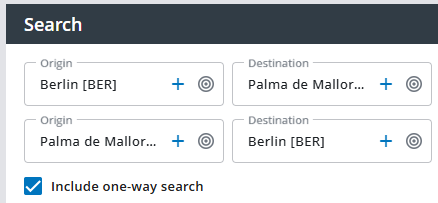
You'll not only get roundtrip results but also see a special box at the top of the results list showcasing the cheapest one-way outbound and inbound flights.
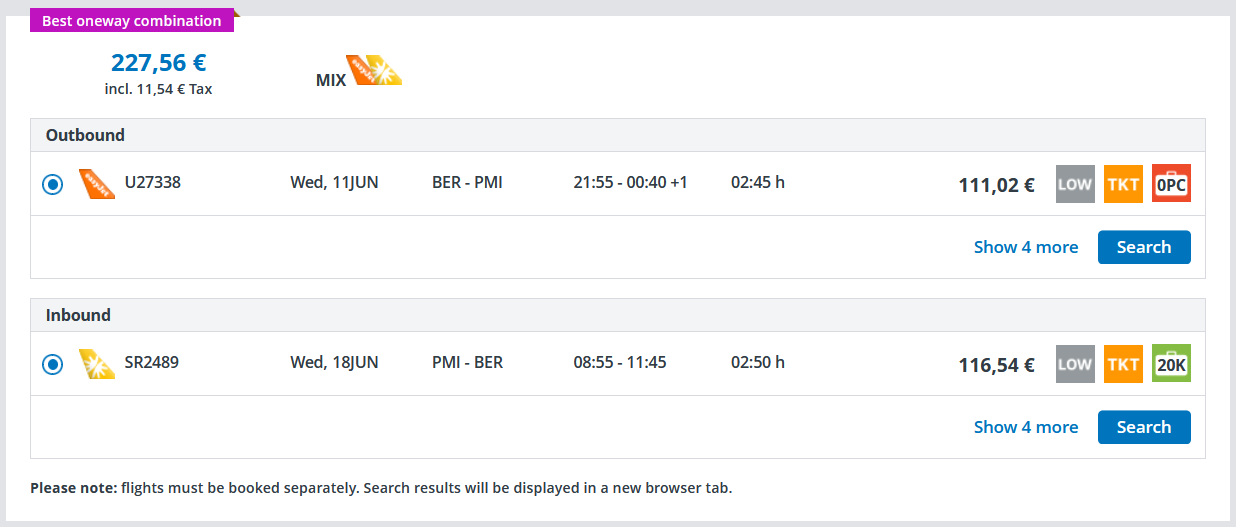
Plus, you can click to view four more options.