Booking management
General
You can access your booking management by clicking on “My Bookings".

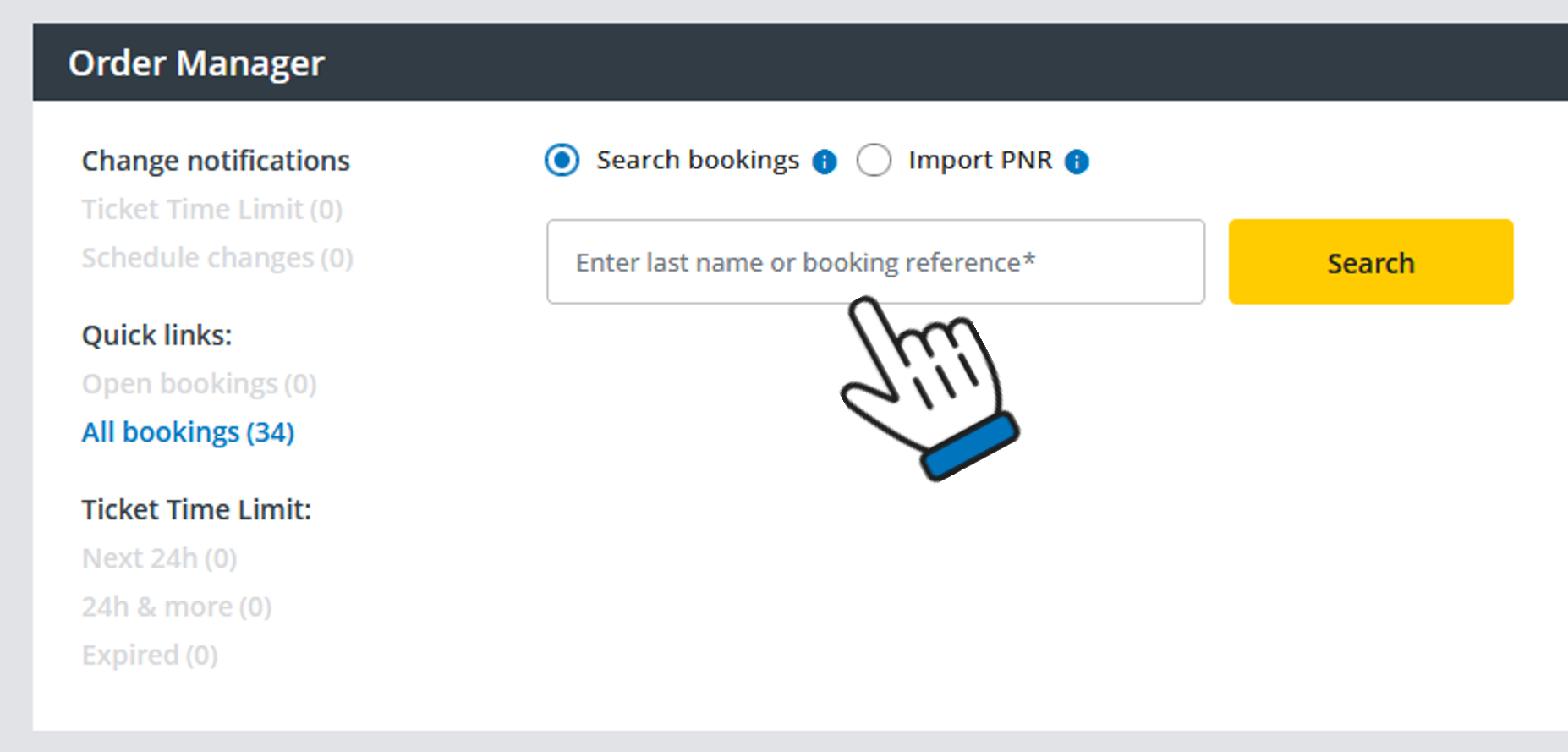
If you want to retrieve and edit individual bookings, please enter the passenger name, file key, or Super PNR in the search field of the Order Manager.
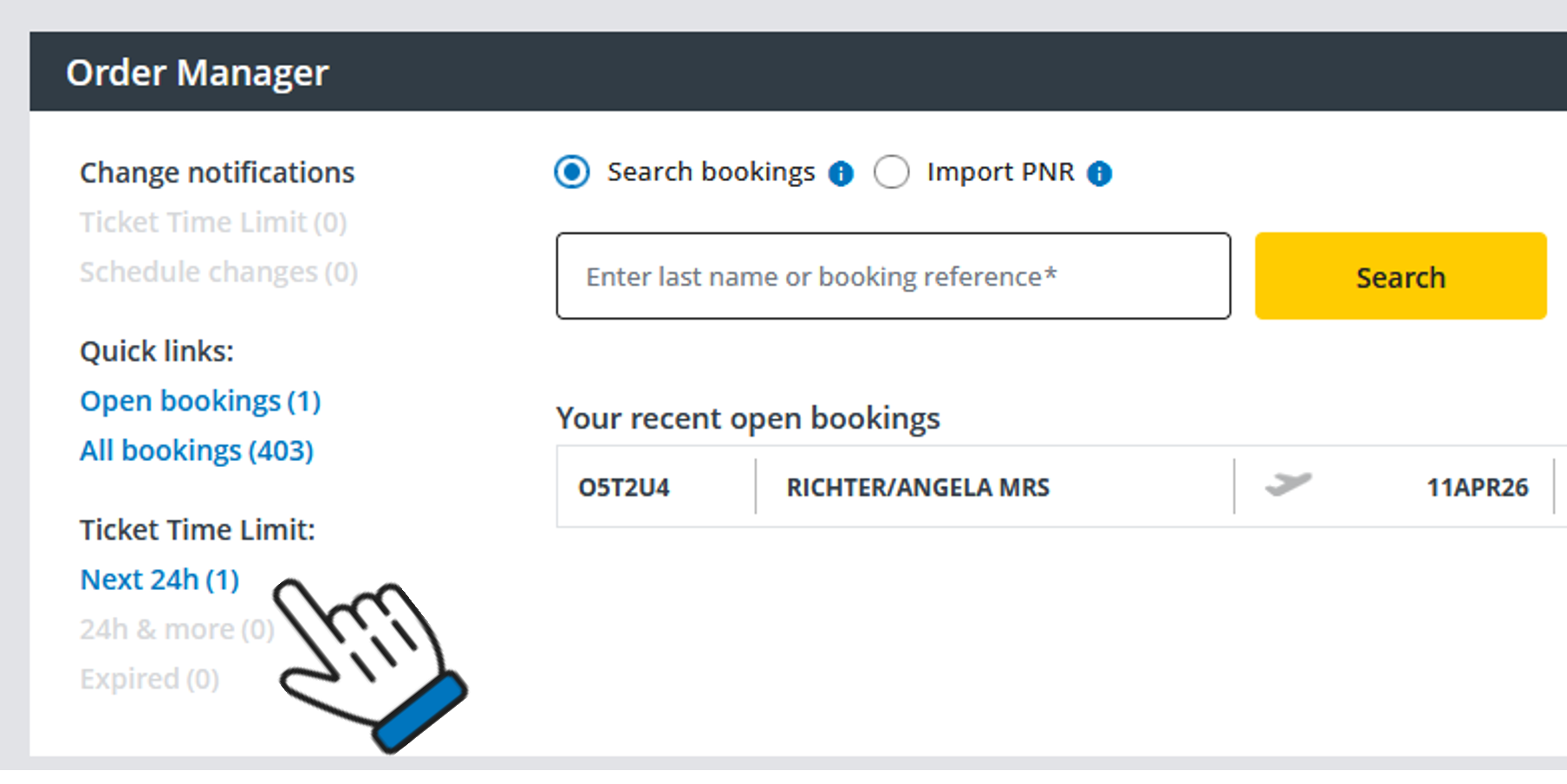
You can also search specifically for reservations whose ticket deadline expires today. This makes your daily work easier!
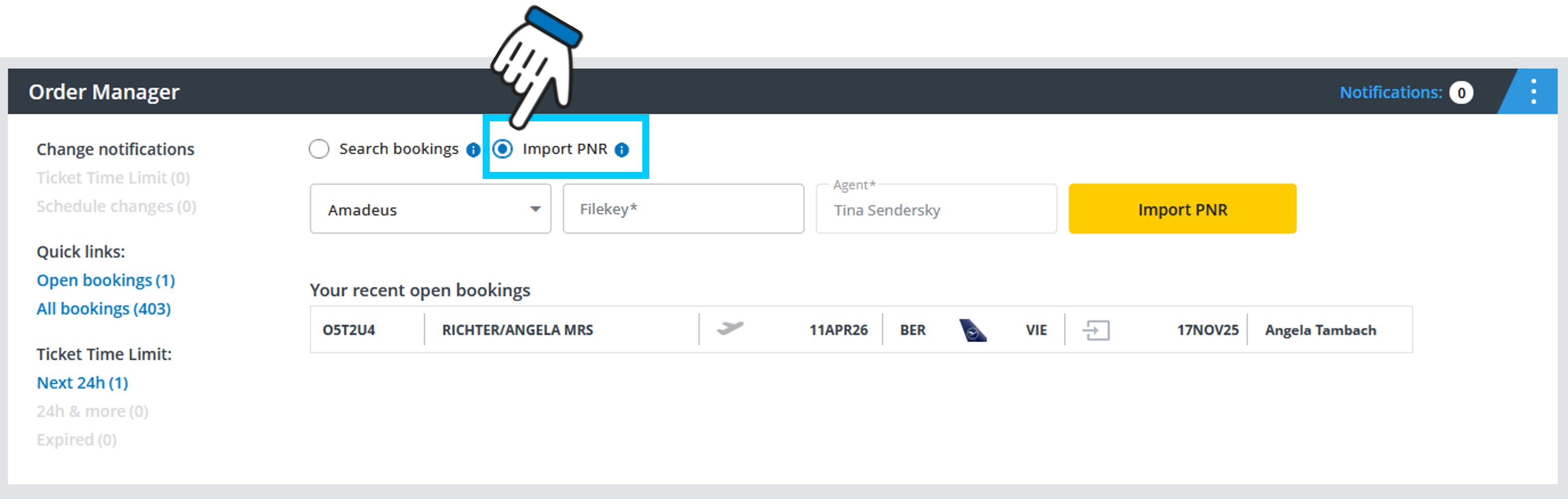
To keep track of all your bookings, import the PNR created in your GDS directly into Cockpit.
PNR Import
Using the "Import PNR" function you can transfer bookings previously booked outside Cockpit (both ticketed or unticketed) from your own GDS (Amadeus, Sabre or Galileo) to “My Bookings” for further processing, adding seats and extras as well as ordering tickets.
Prerequisites for a successful PNR Import:
- Flight segments must be in the future
Please add your agency number to the PNR prior to the upload (replace 123456 with your agency number) and use the following commands:
- AMADEUS: RM AGYKD-123456
- Sabre: 5AGYKD-123456
- Galileo: NP.H**AGYKD-123456
Please make sure that an activation exists:
- AMADEUS: EOU-***AE2***-PNOB/QUEB/TSTB
- Sabre: W/TAA(your PCC)#B9UZH
- Galileo: Access Agreement to 8TL6
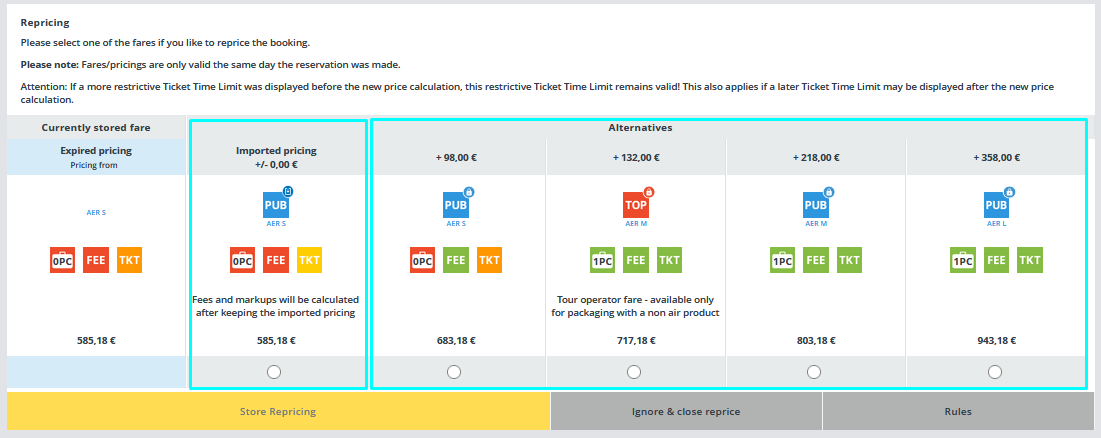
If a PNR contains a stored pricing (TST, PQ, FF) with the corresponding "tariff" remark, the PNR will be automatically priced in Cockpit during import. This automated new pricing will only be stored in Cockpit, if repricing gets the same fare and tax as stored in the PNR.
If the stored fare from import differs from the ones found by Cockpit, then the “Imported pricing” will be offered additionally to the fares found by Cockpit as an alternative.
Ticket Numbers
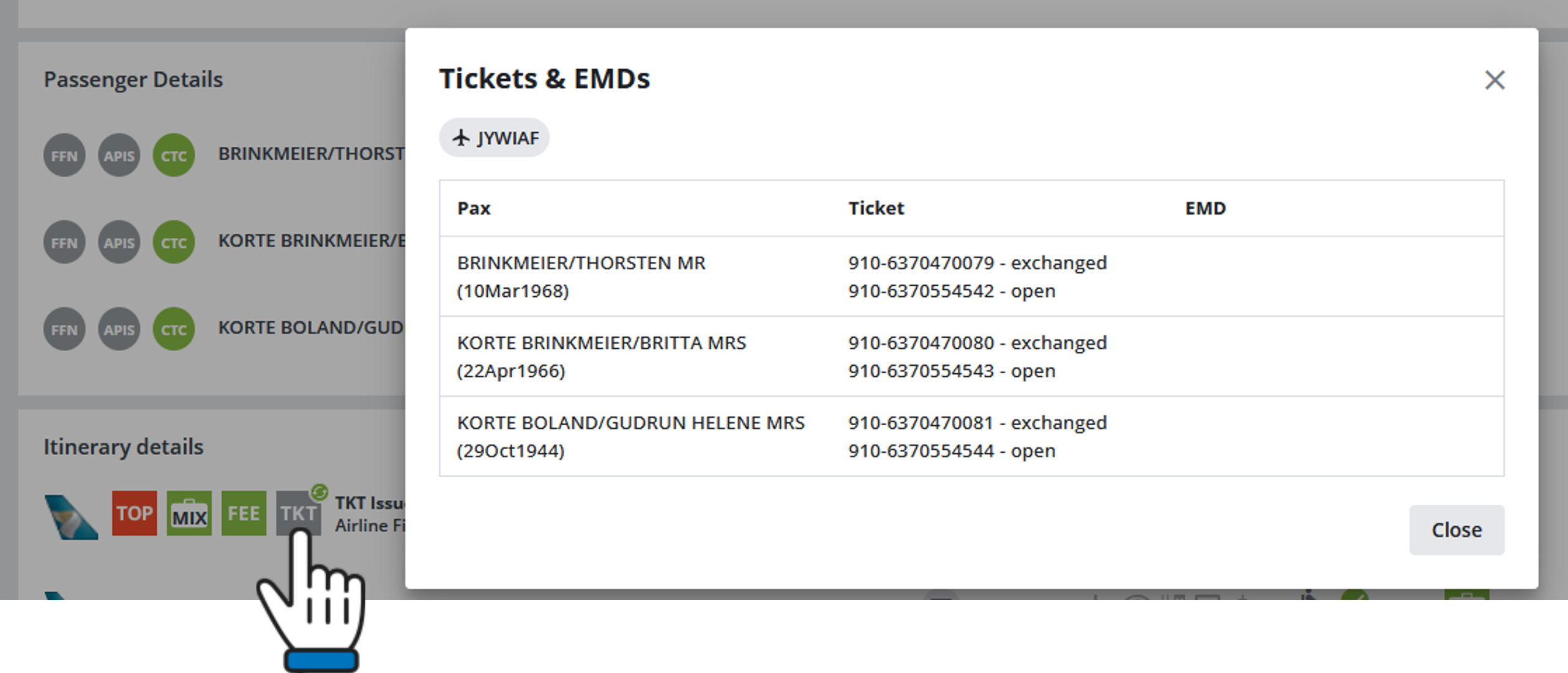
Do you need an overview of the ticket numbers?
By clicking on the TKT icon, you will find not only the ticket numbers, but also the issued or voided EMDs.
If you want to access this information again later in the booking process, you can always check under “Passenger Details.”
Void
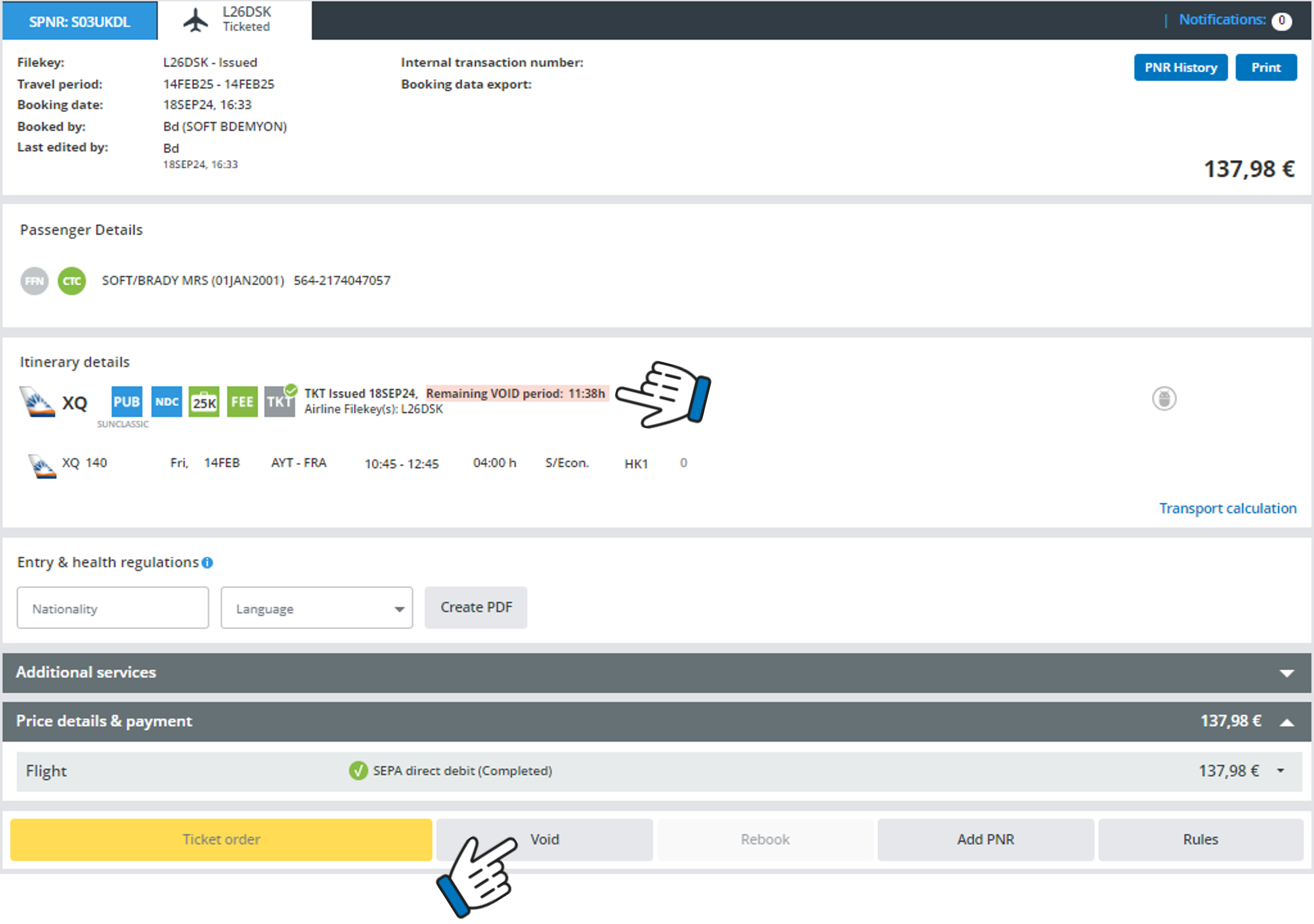
You can VOID your booking directly in the Order Manager.
Issued tickets will be automatically canceled for a contractually agreed fee, provided that the VOID period has not yet expired.
Please note: The VOID period depends on where the ticket was issued. For international fares, the period may therefore expire on the same day.
Here you can check the remaining VOID period and perform the VOID action:
Print travel documents
You can generate a confirmation, a journey registration form, an offer or an itinerary as a PDF file. These documents can be saved and printed or copied to clipboard or directly into an email as required.
The following languages are available:
German, English, French, Italian, Dutch, Polish, Russian, Spanish, Czech and Turkish.
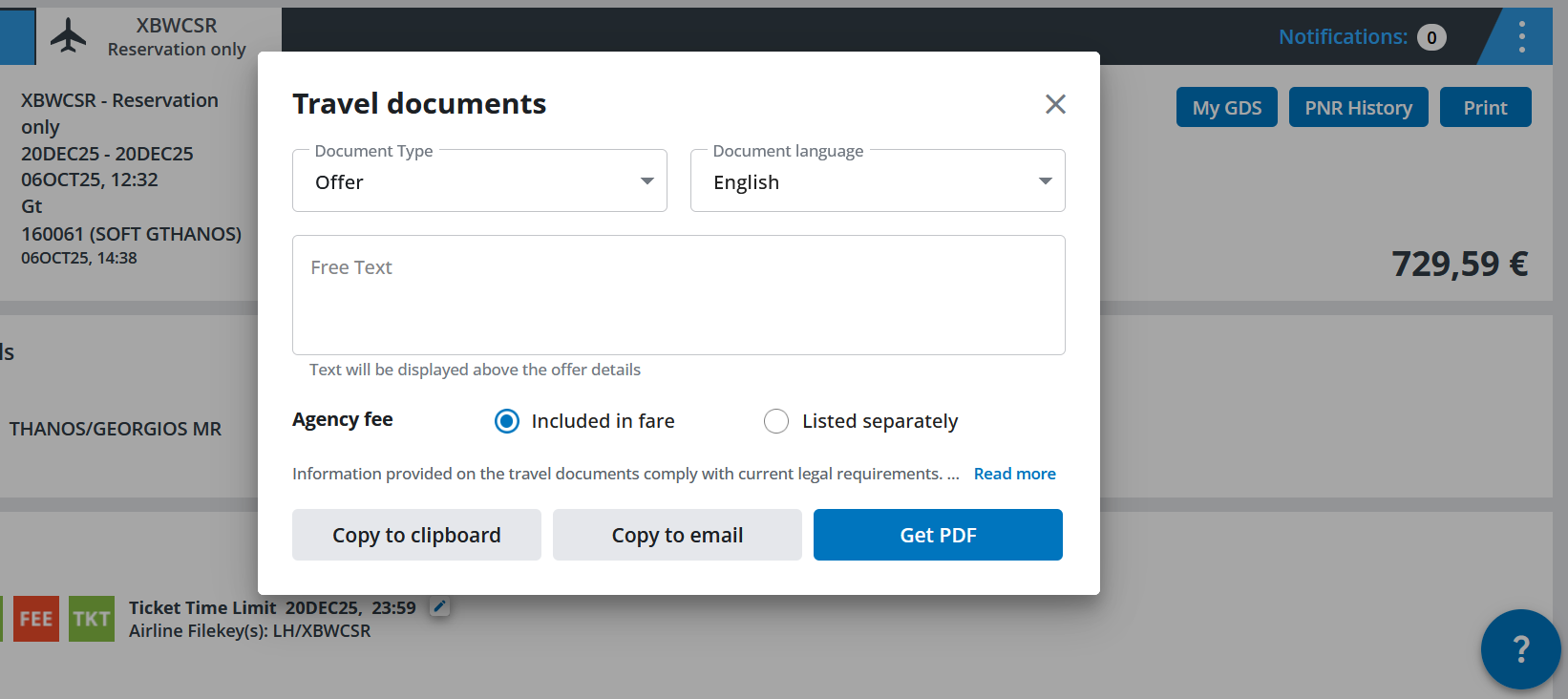
After clicking on “Print” you will see the following pop-up window:
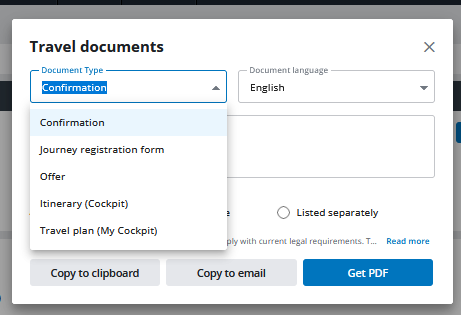
Select the document type you wish, choose the document language you prefer, optionally enter a free text, decide on how you want the agency fee to appear and click on one of the three buttons to get the document as a PDF or copy and paste it wherever you like.
Notifications
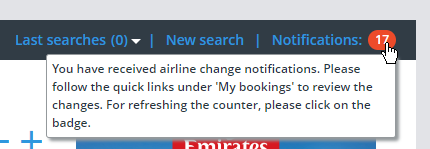
As soon as a notification of a flight schedule change or a new ticketing deadline (TKTL change) is available for a PNR, it is displayed in the notification counter:

When you move the mouse pointer over the notification counter, an informative text is displayed:
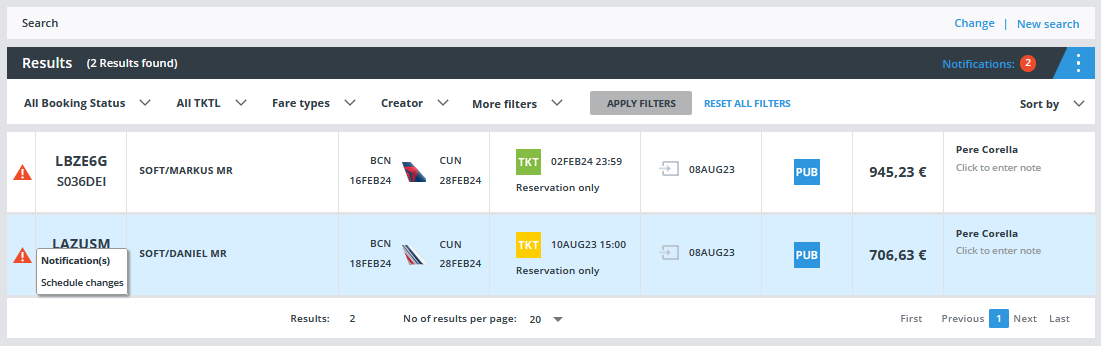
Bookings with schedule change notifications or a TKTL warning are listed in the Quick Links under “Change notifications”:

When you click on the quick link, the list of bookings with a notification will be displayed:
After opening the booking by clicking on it, the flight segments with a schedule change will be highlighted and the “SCHEDULE CHANGE” link will be displayed:
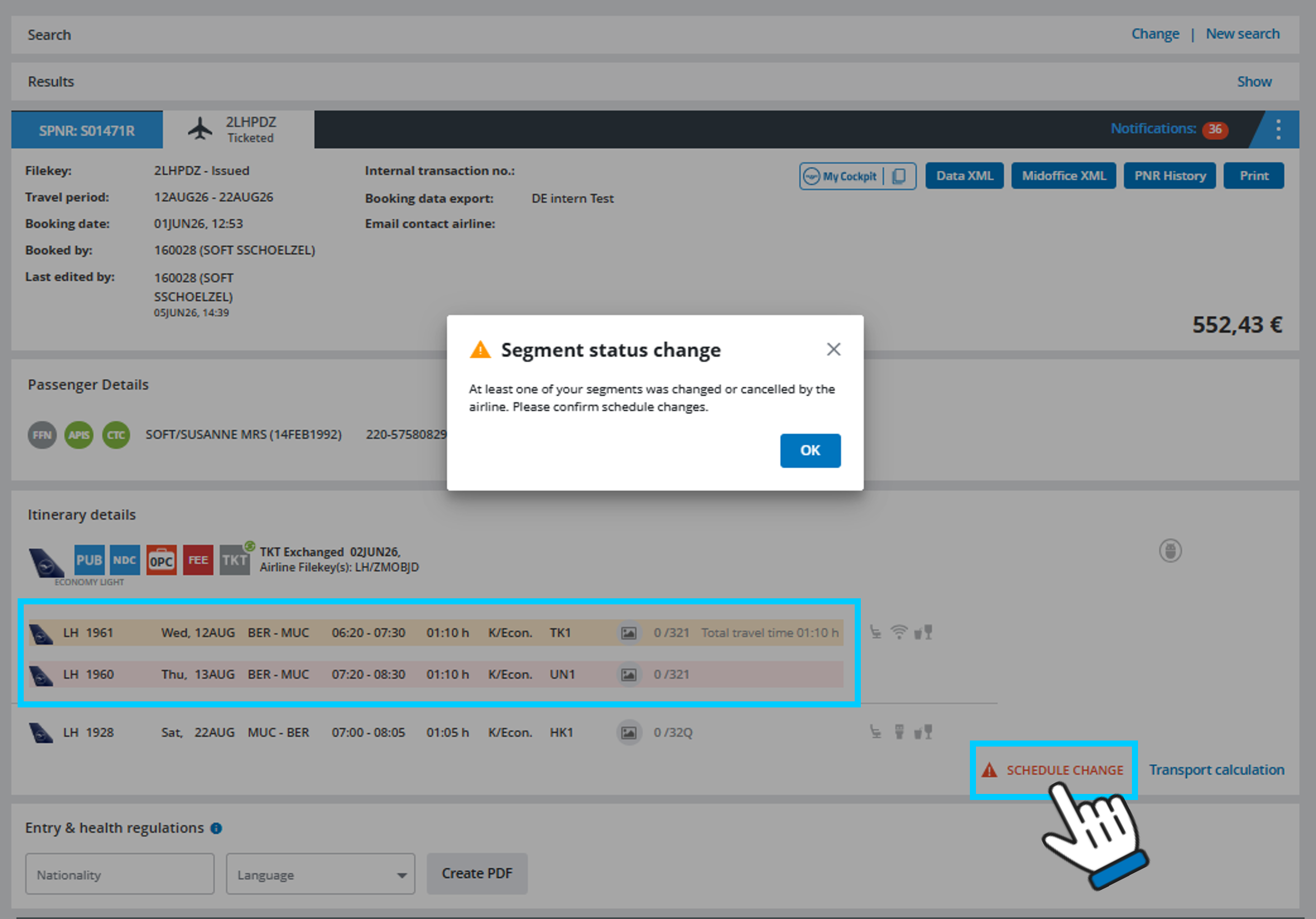
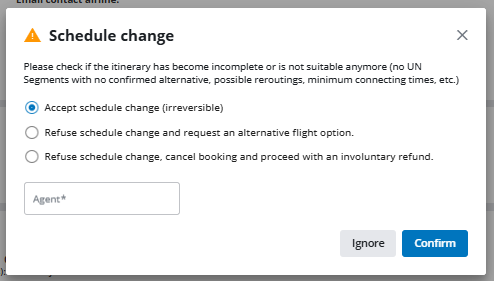
When you click on “SCHEDULE CHANGE” a pop-up window will open where you can accept the schedule change, reject it and request a rebooking, or cancel the booking and request an involuntary refund.
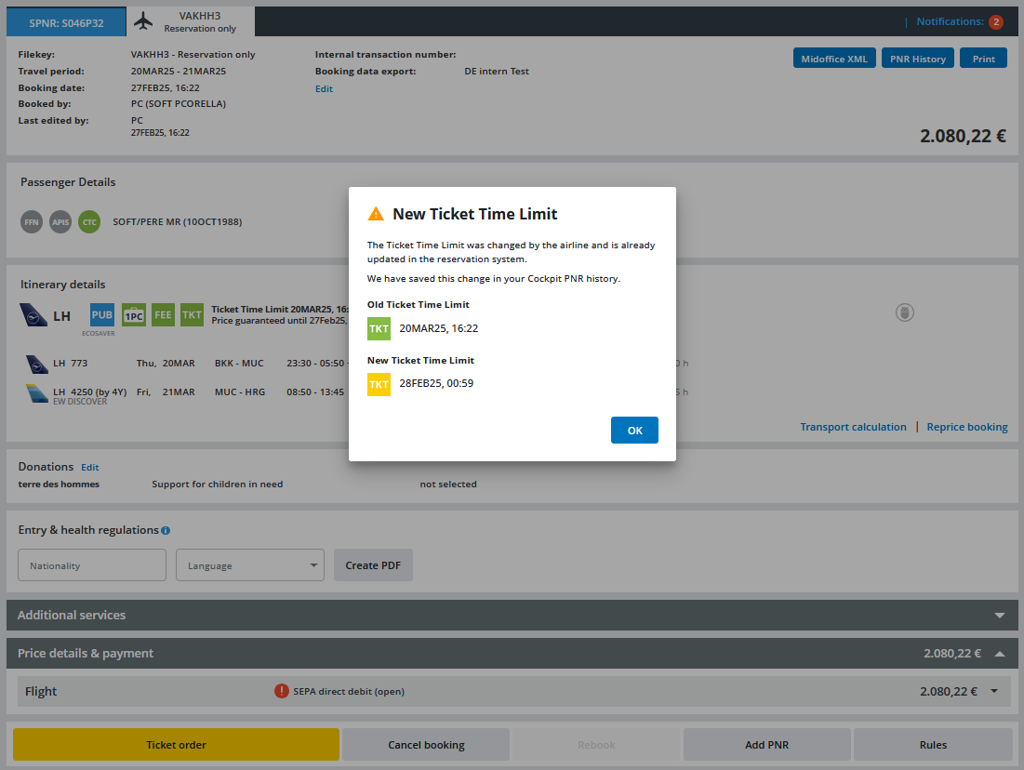
If the booking contains a warning regarding the time limit for issuing tickets, the new ticket time limit will be displayed in a pop-up which has to be confirmed by clicking on OK:
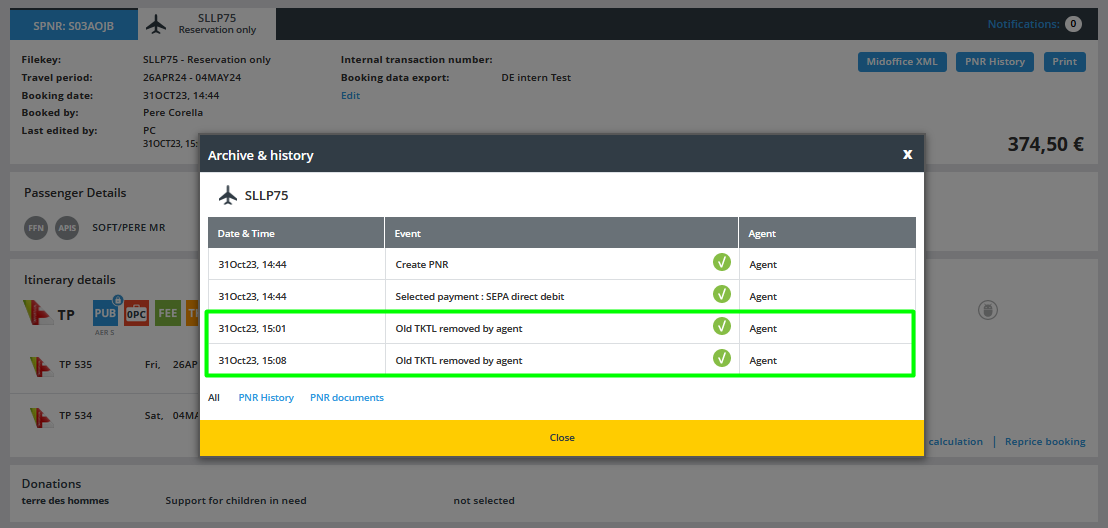
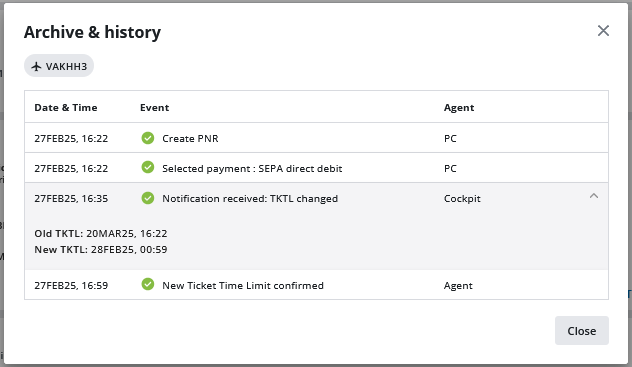
After confirmation, the original TKTL remains stored in the PNR history:
Manual TKTL override
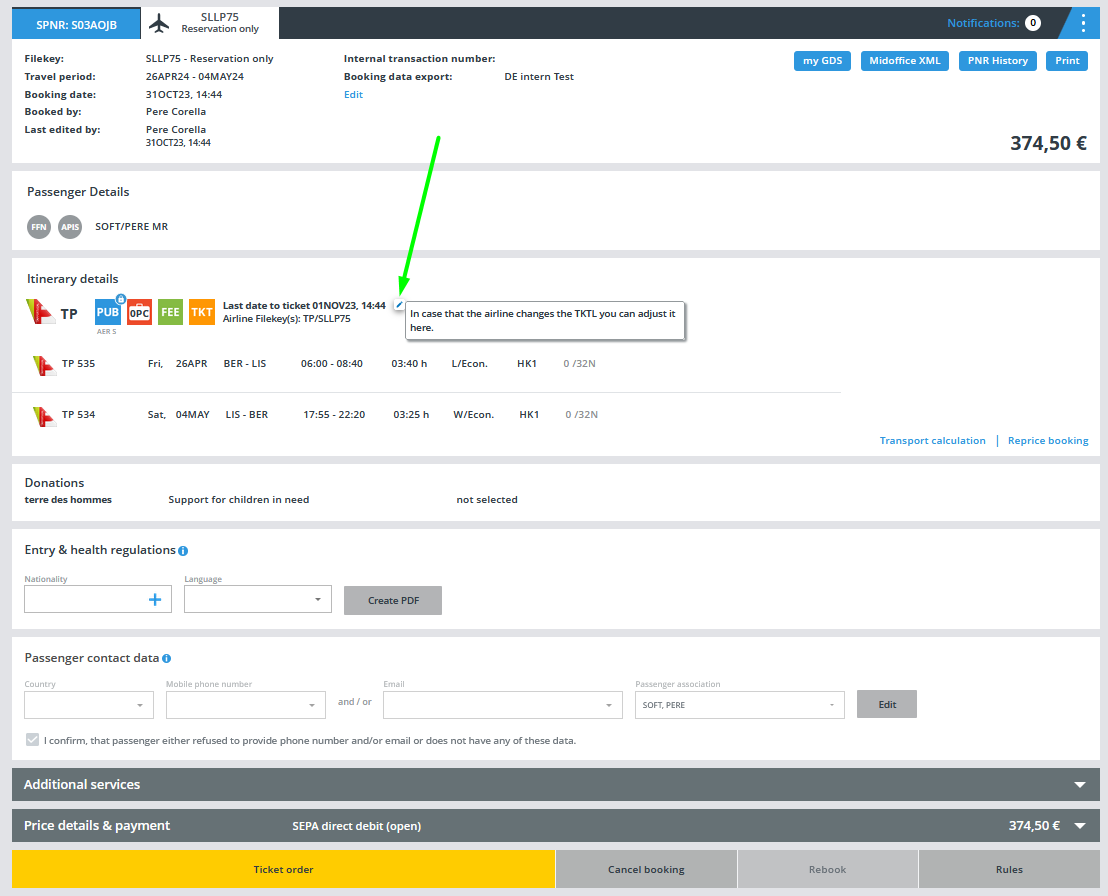
Cockpit displays the ticketing time limit (TKTL) as the “last date to ticket”. If you wish to enter a different TKTL for the booking (reservation only), this is possible at your own risk. All manual changes to the TKTL are stored in the booking history in Cockpit.
The ticketing time limit can be changed manually for a PNR (reservation only) with a valid fare by clicking on the “pencil” icon:
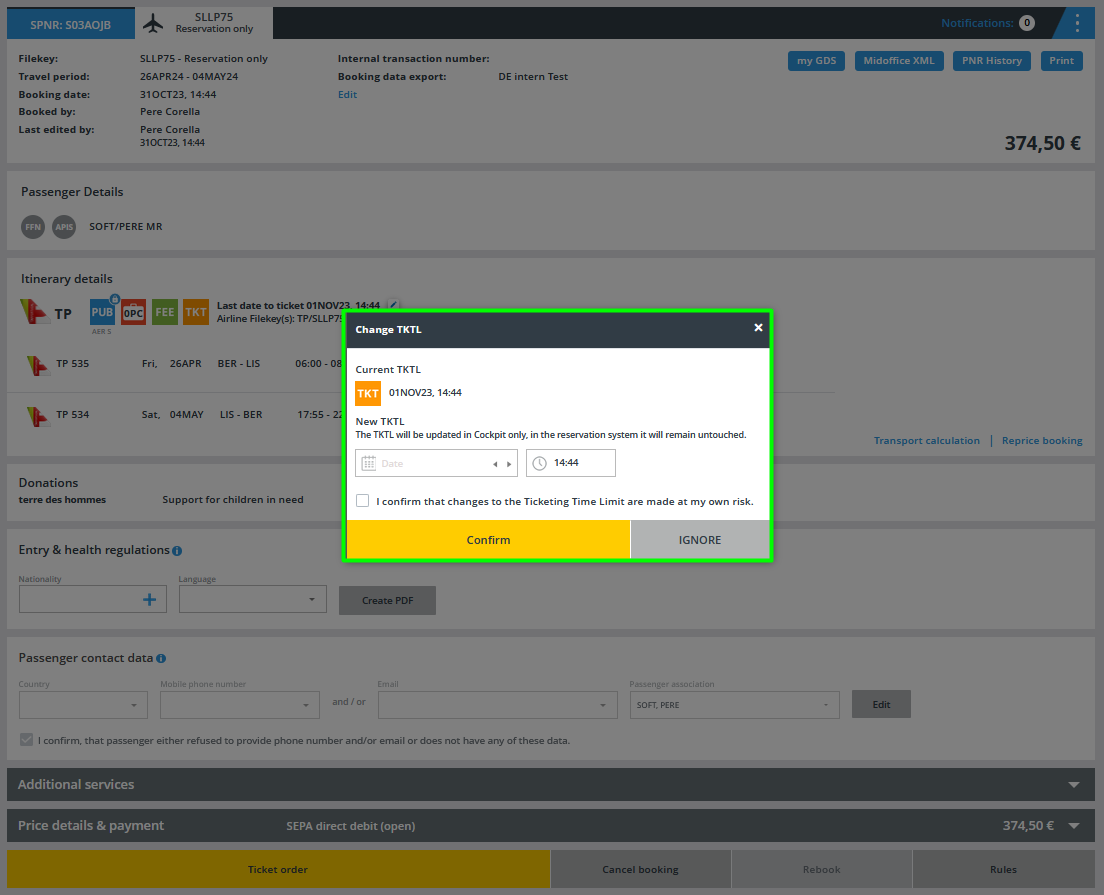
A pop-up window will then open, allowing you to manually enter a new date and time:
After you click on “Confirm” the date and time for the TKTL will be updated, the TKT icon will change color accordingly, and “(edited)” will be displayed next to the date and time:
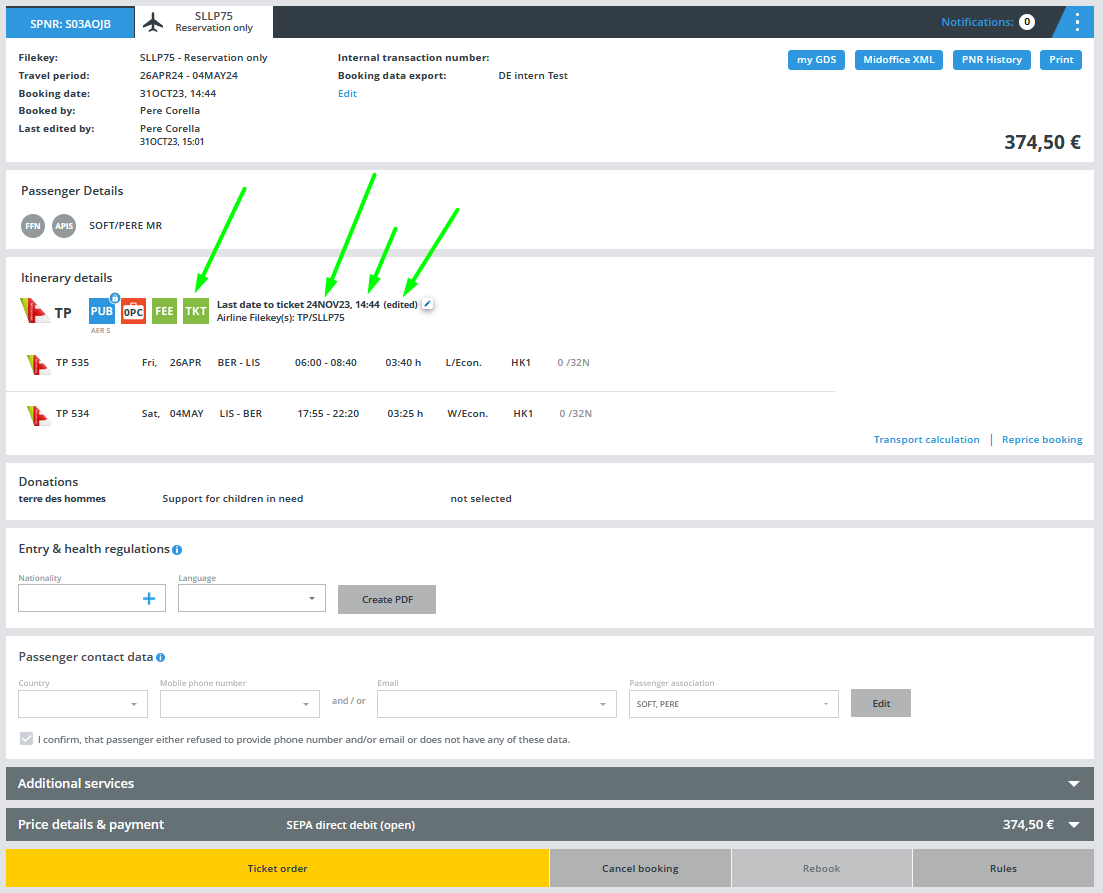
Each time a TKTL is edited manually, a new entry is created in the booking history: