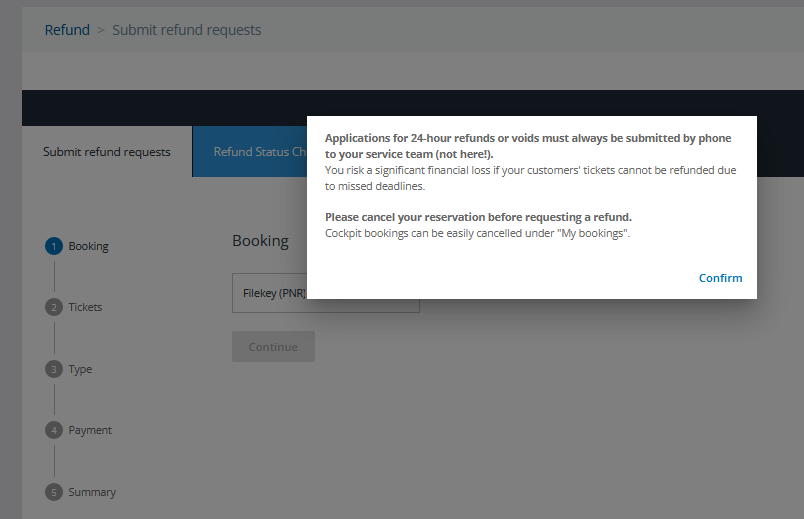
Refund
In many cases an automated refund is possible directly in the Order Manager under "My Bookings", in other cases refunds have to be submitted by our refund form.
If a PNR is outside of the void period and it is eligible for a refund, when you click on the "Cancellation options" button a pop-up with different options will be displayed:
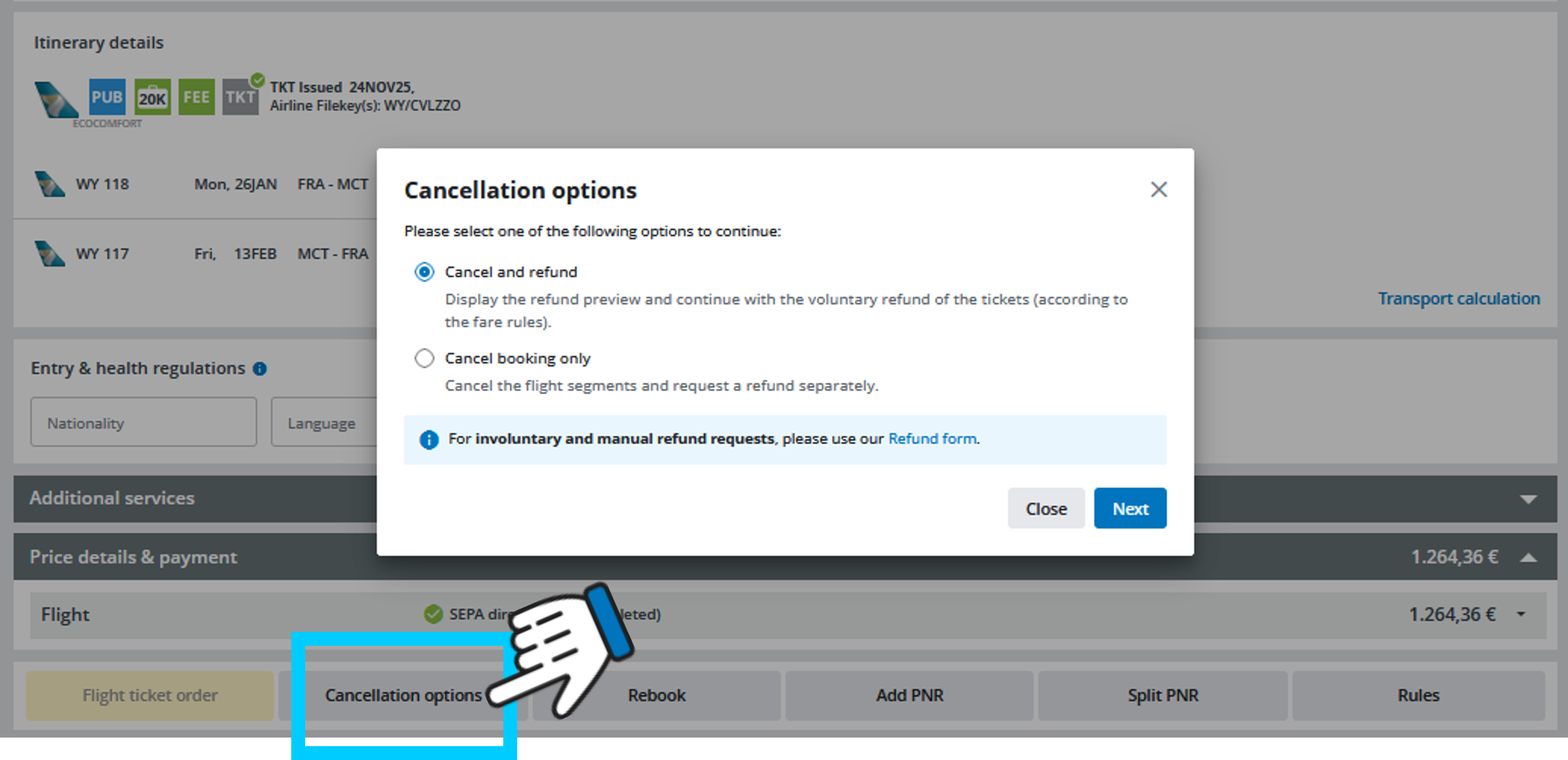
Automated refund
By selecting "Cancel and refund" you will get a preview of the refund:
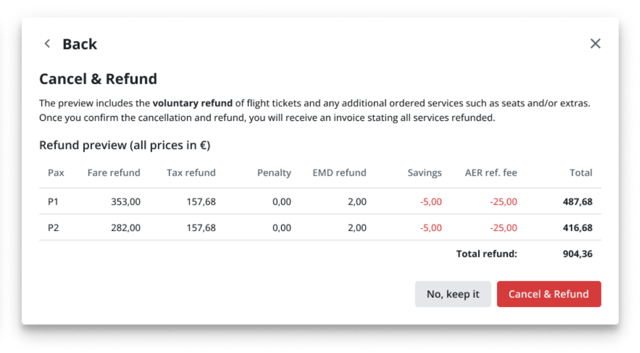
By clicking on "Cancel & Refund" the PNR will be cancelled and the refund request will be processed. If cancellation and refund were successful a confirmation pop-up will be displayed.
After clicking "OK" on the pop-up, the PNR will be updated in Cockpit with the new status “Cancelled”:
Refund form (manual refund)
How to get to the refund form
There are two possible ways to get there. Either you’ll get redirected to the refund form if neither a void is possible anymore nor an automated refund is available (by trying to cancel the booking) or you directly navigate to the refund form.
Direct access:
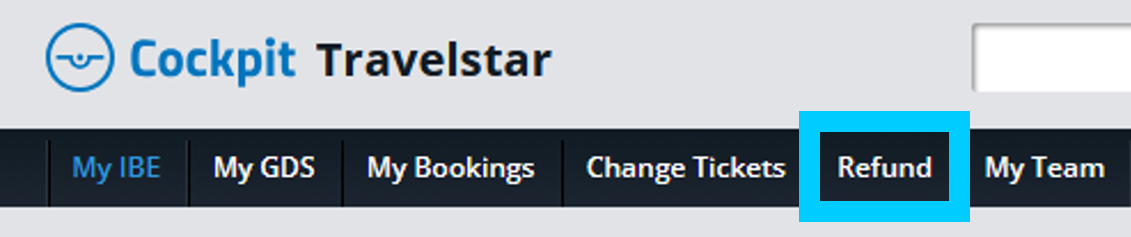
1. In order to navigate directly to the refund form, click on the menu item "Refund".
2. Then click on "Submit refund requests".
3. And now just pay attention to the warnings and fill out the form.